


AI Summary
A calculator gives your visitors an instant, personalized answer, whether that’s a monthly mortgage payment, a shipping estimate, or how many calories they should be eating in a day.
That kind of interactivity keeps people on your page far longer than a block of text ever could. It also gives you a natural reason to ask for an email address before you reveal the result.
So, the same tool that helps your visitors can grow your list at the same time. And you don’t need to write a single line of code to set one up. I’ll show you two ways to make a calculator in WordPress with WPForms.
Build Your Calculator Form Now
How to Make a Calculator in WordPress with WPForms
Building a calculator form with WPForms takes about five minutes, and the first steps are the same whether you let AI do the heavy lifting or build from a template. You’ll get WPForms and the Calculations addon set up, then pick the building method that suits you.
Install the WPForms Pro Plugin
WPForms is the most beginner-friendly form builder for WordPress, and it doubles as a genuinely capable calculator plugin.
It comes with 2,100+ form templates, including a whole category of ready-made calculator forms you can adapt for pricing, quotes, health metrics, and more.
What I like most about using WPForms for calculators is that the math lives inside the same drag-and-drop builder you use for every other form. There’s no separate calculator tool to learn, and once a formula is in place it updates the result in real time as your visitor types
Calculators run on the Calculations addon, which is available on WPForms Pro and higher. Pro also unlocks conditional logic, entry management, and the full template library, so it’s the tier I’d point any calculator project toward.

To get started, buy the Pro license. Then install and activate WPForms on your site. If you’ve never added a plugin before, here are step-by-step instructions on how to install a WordPress plugin.
Activate the Calculations Addon
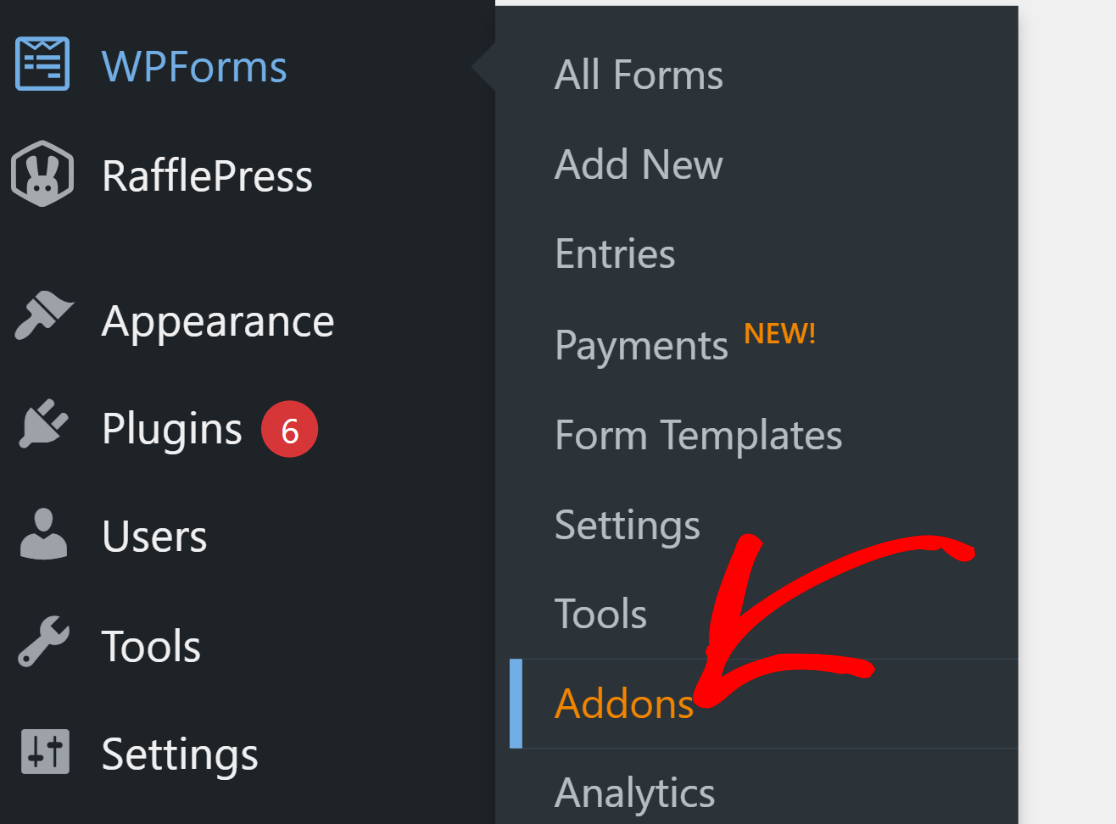
The Calculations addon is what turns an ordinary form into a working calculator, so it’s the one piece you’ll want in place before you start building. Installing it takes a few clicks. From your WordPress dashboard, go to WPForms » Addons.
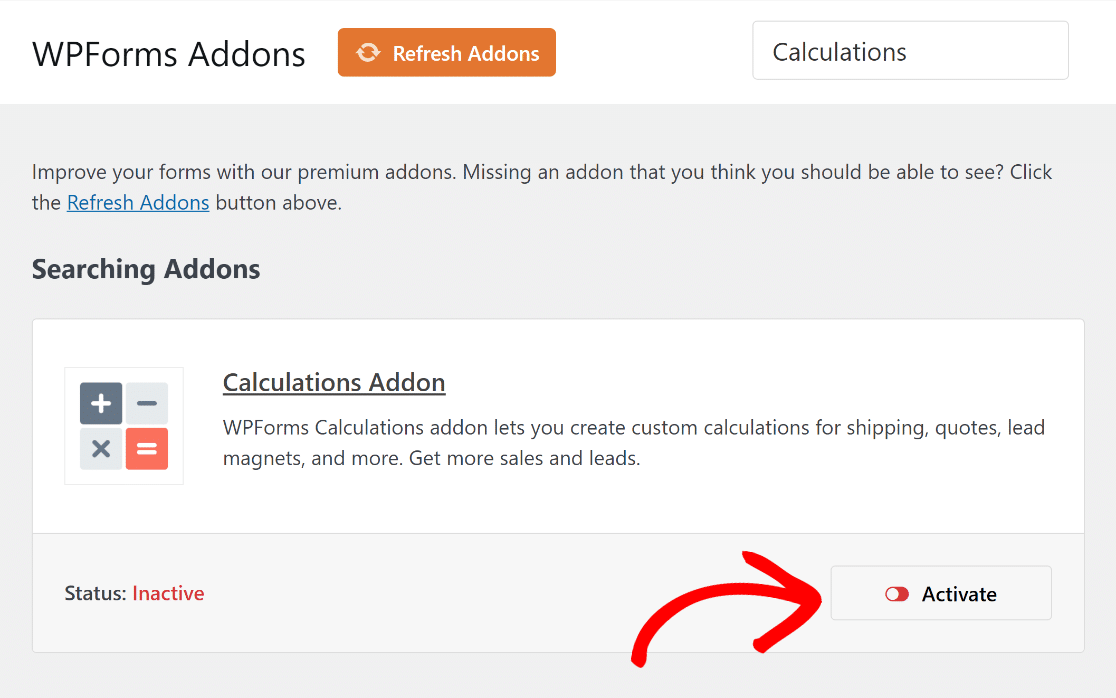
Type “Calculations” into the Search Addons field, then click Install Addon and, once it appears, click Activate.
With the addon active, you’re ready to build your calculator, and you can do that one of two ways, by letting AI create it for you or by starting from a template and shaping it yourself.
Method 1: Build Your Calculator With AI (Fastest)
With WPForms AI, you create a new form, open the AI builder, and type a plain description of the calculator you want.
Something like “a mortgage calculator that asks for loan amount, interest rate, and term, then shows the estimated monthly payment” is enough to get going.

If your request involves math, like adding totals, tax, or shipping, WPForms switches on the Calculations addon, writes the formula, and drops it into the field that displays the result.
You describe the outcome you want, and the AI assembles the fields and the formula to match. This is the fastest route from idea to finished calculator.
You can build a complete form just by describing it, review what the AI produced, and ask for changes later on to build calculation formulas.

Once your calculator exists, you’ll usually want to fine-tune it, which is exactly what Smart Edit is for.
Method 2: Build Your Calculator Manually From a Template
WPForms includes a category of calculator templates built for common jobs, so you rarely have to start from scratch.
You pick the one closest to what you need, then customize the fields and the formula until they fit. Here’s how that looks from start to finish.
Choose a Calculator Template
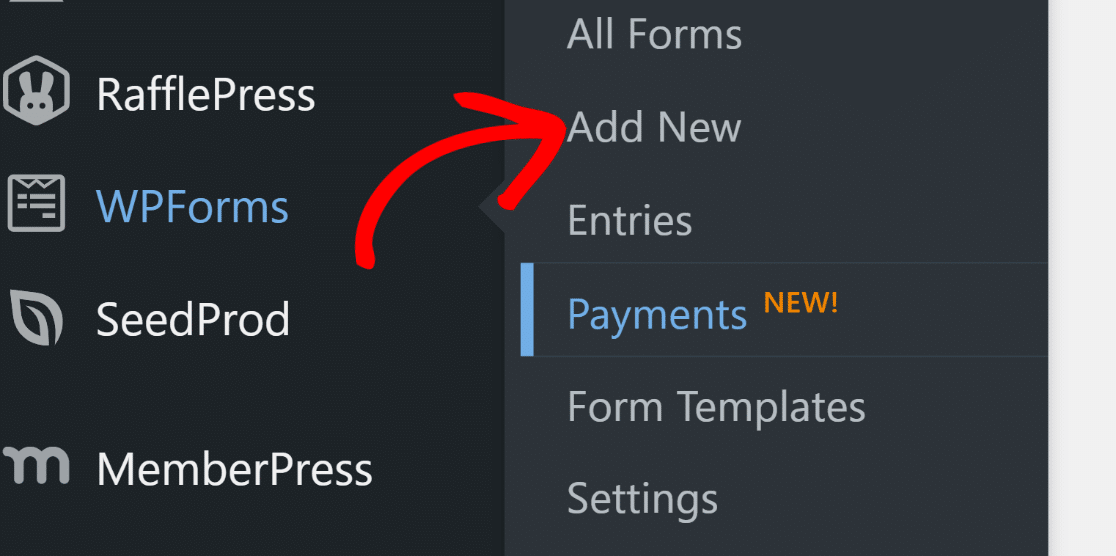
From your WordPress dashboard, go to WPForms » Add New.
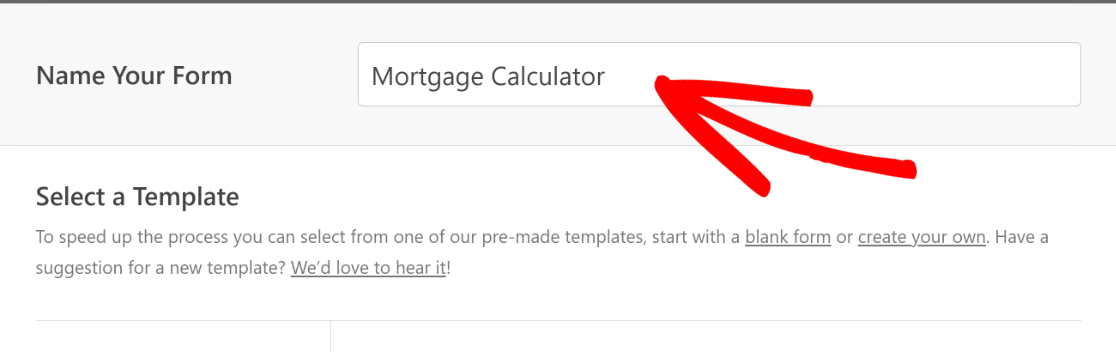
Give your form a name so you can find it again later. I’ll call this one “Mortgage Calculator.”
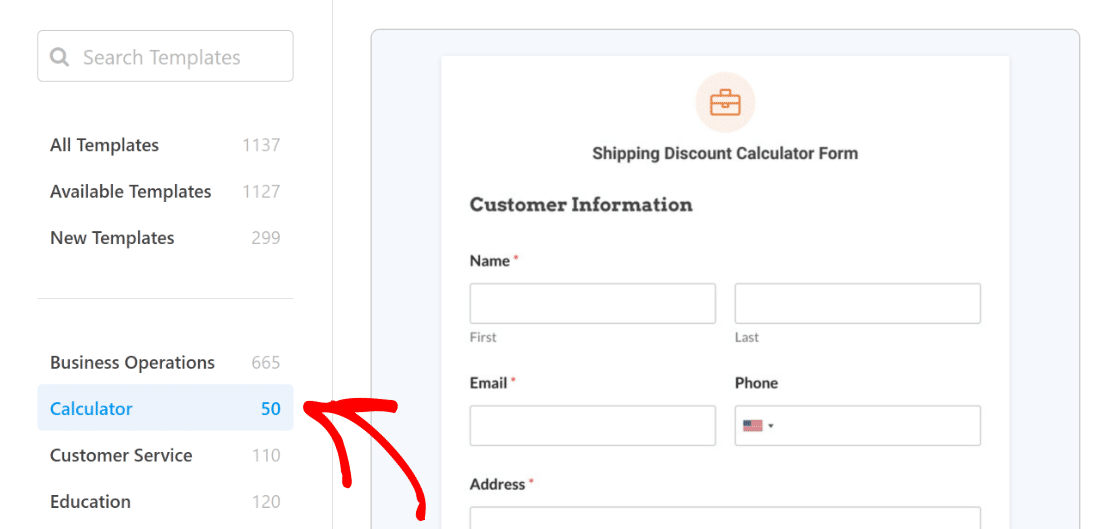
Scroll down to the Calculator template category to see the forms built specifically for this job.
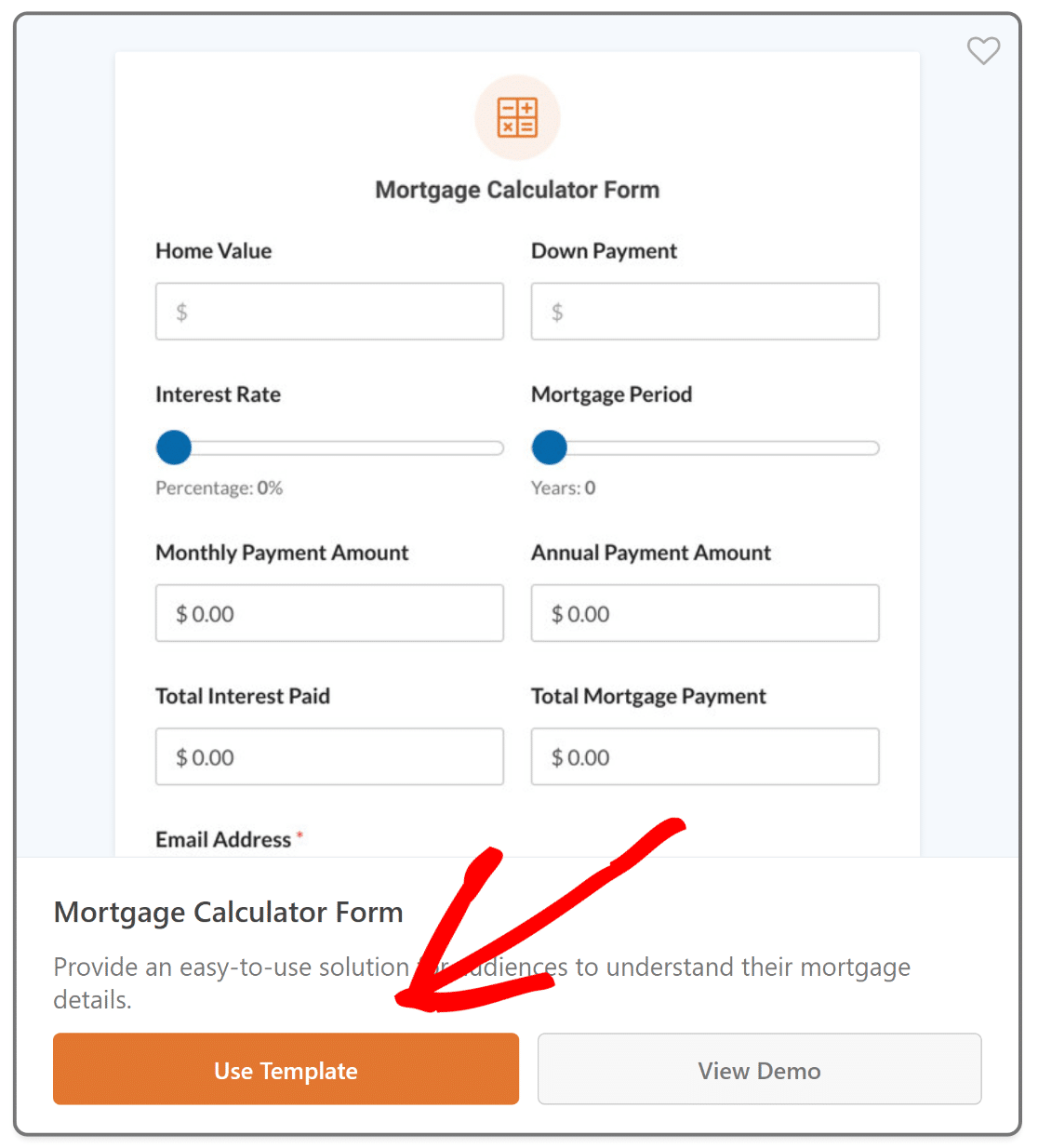
When you find one that fits, hover over it and click Use Template. For this walkthrough I’m using the Mortgage Calculator Form template.
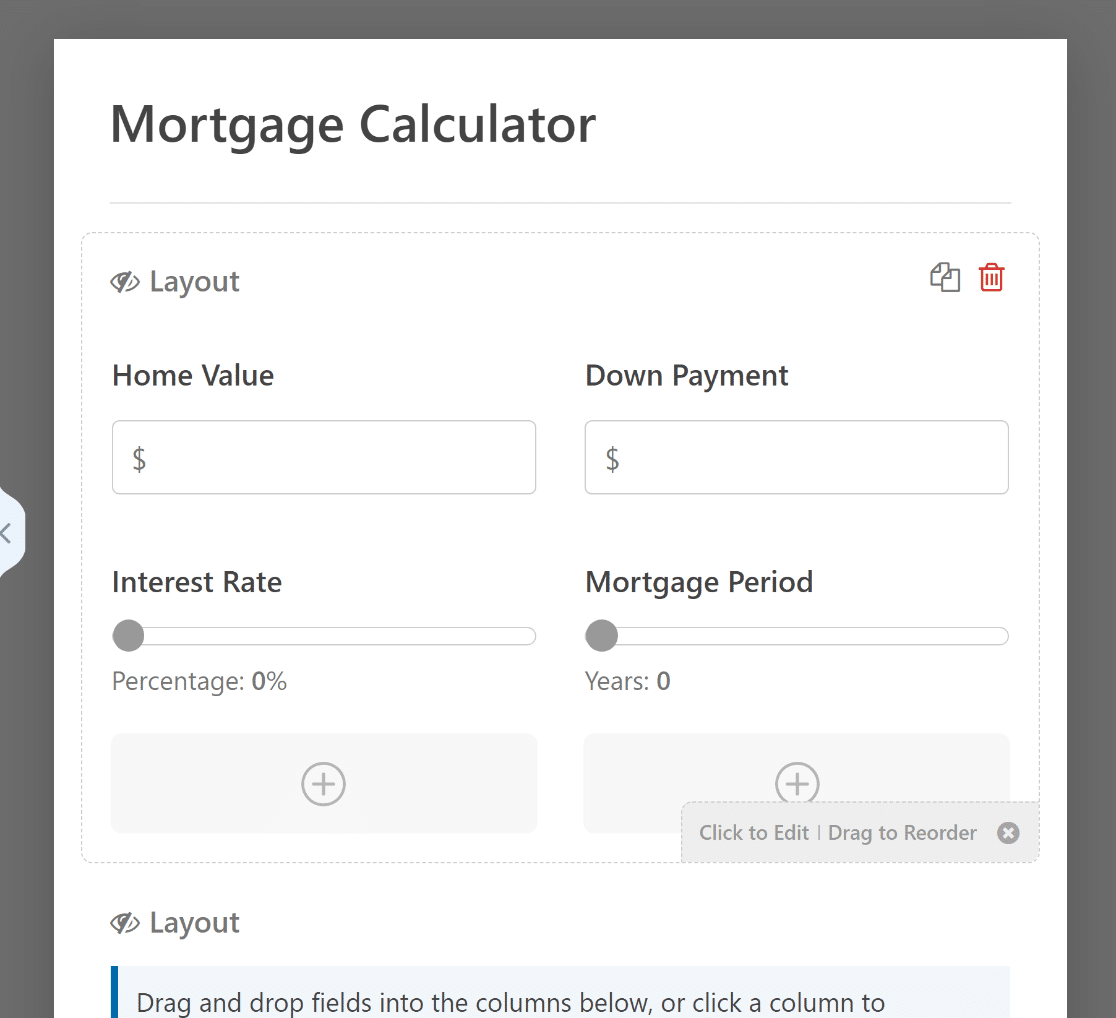
WPForms opens the form builder with your template loaded. The fields panel sits on the left, and a live preview of your form is on the right.
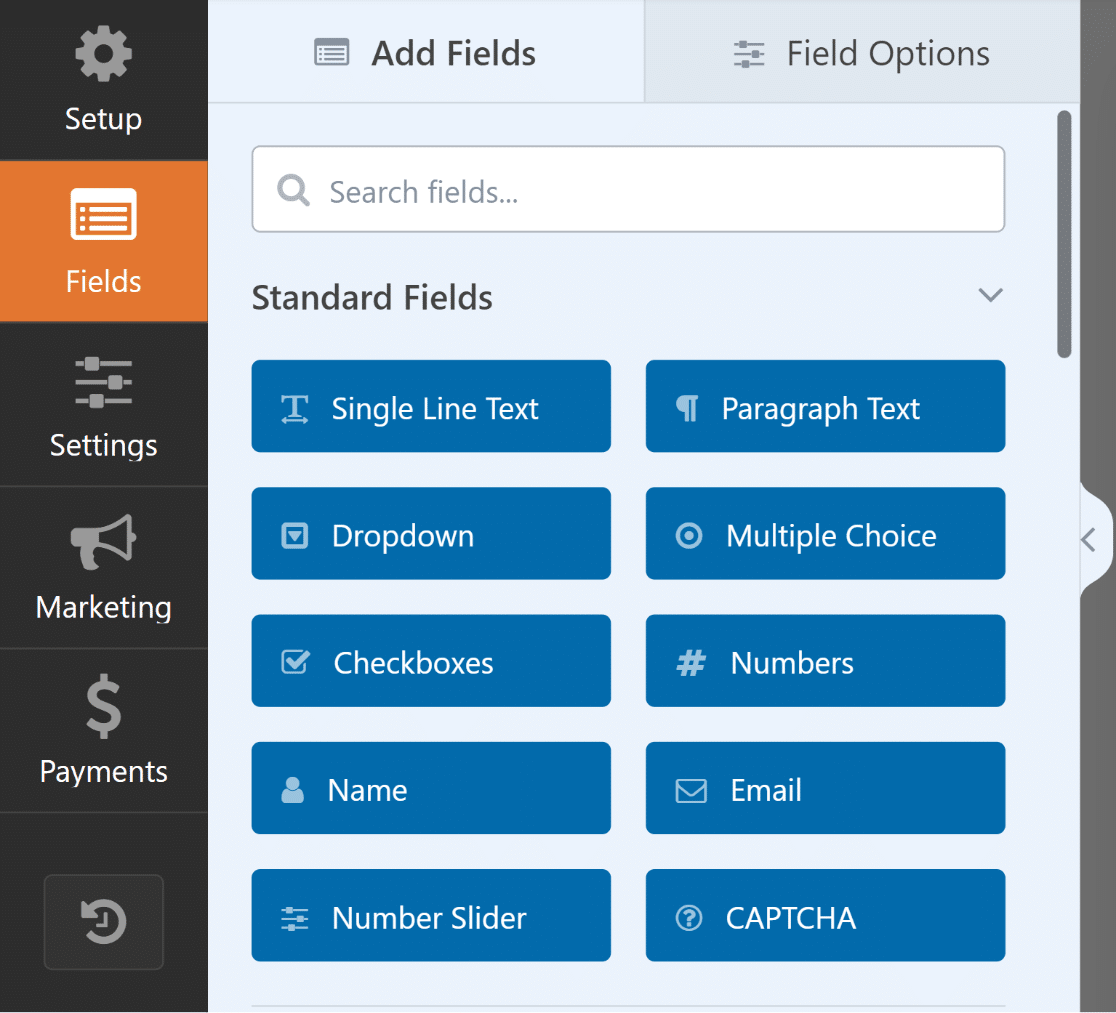
Because you started from a calculator template, the fields and the calculation are already in place, so the template works as a calculator from the moment it loads.
Customize the Fields and the Calculation
This is where you make the calculator your own. You can use the drag-and-drop builder to add, remove, or rearrange fields, and adjust the formula behind the result.
To see how the math works, click the field that displays your total and open its Advanced tab. The formula sits in the Calculation box, written with simple operators like the ones you’d use in a spreadsheet.
You can edit it directly, and if writing a formula isn’t your thing, the Calculations addon docs walk you through setting one up step by step.
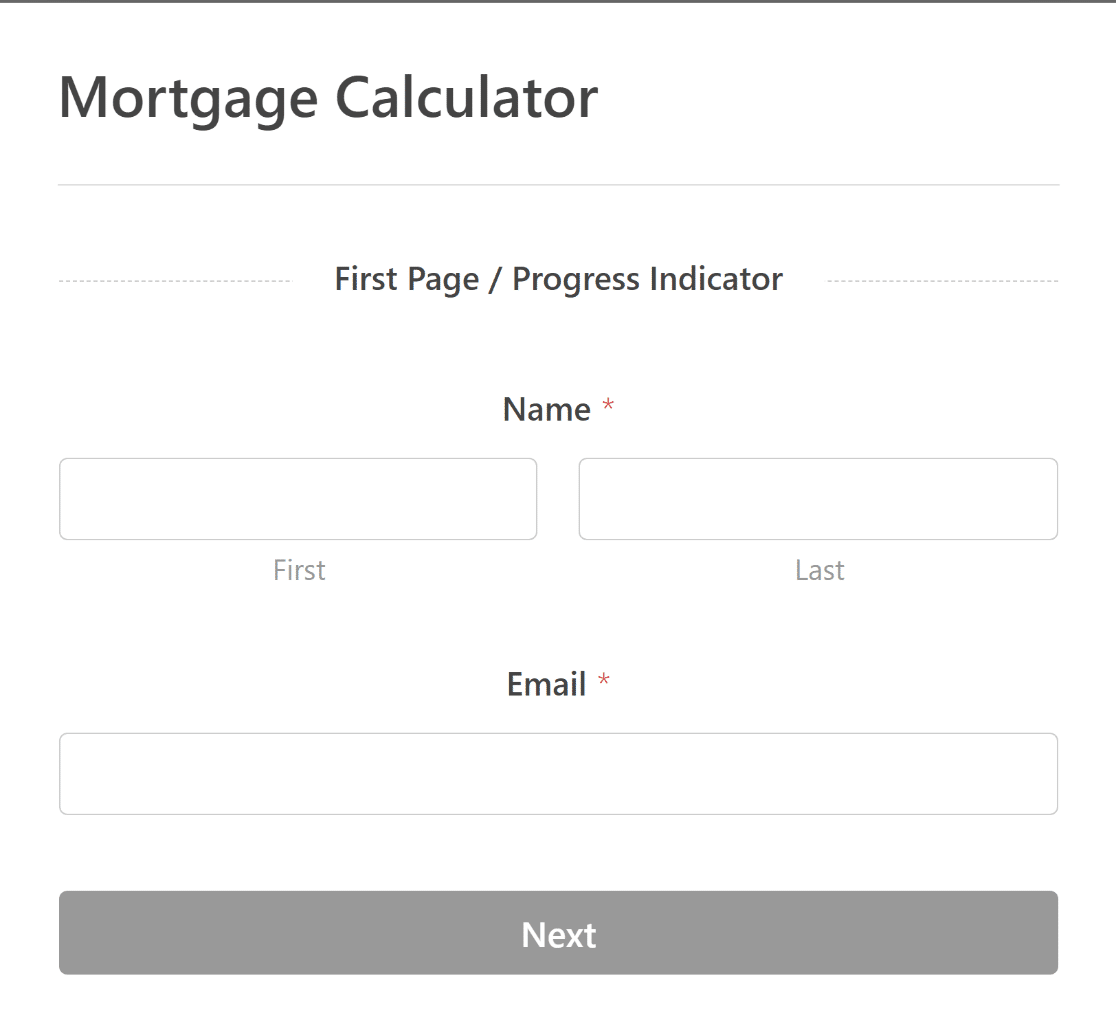
Most calculators also need a way to follow up with the person using them, so I like to add a Name and Email field near the top of the form.
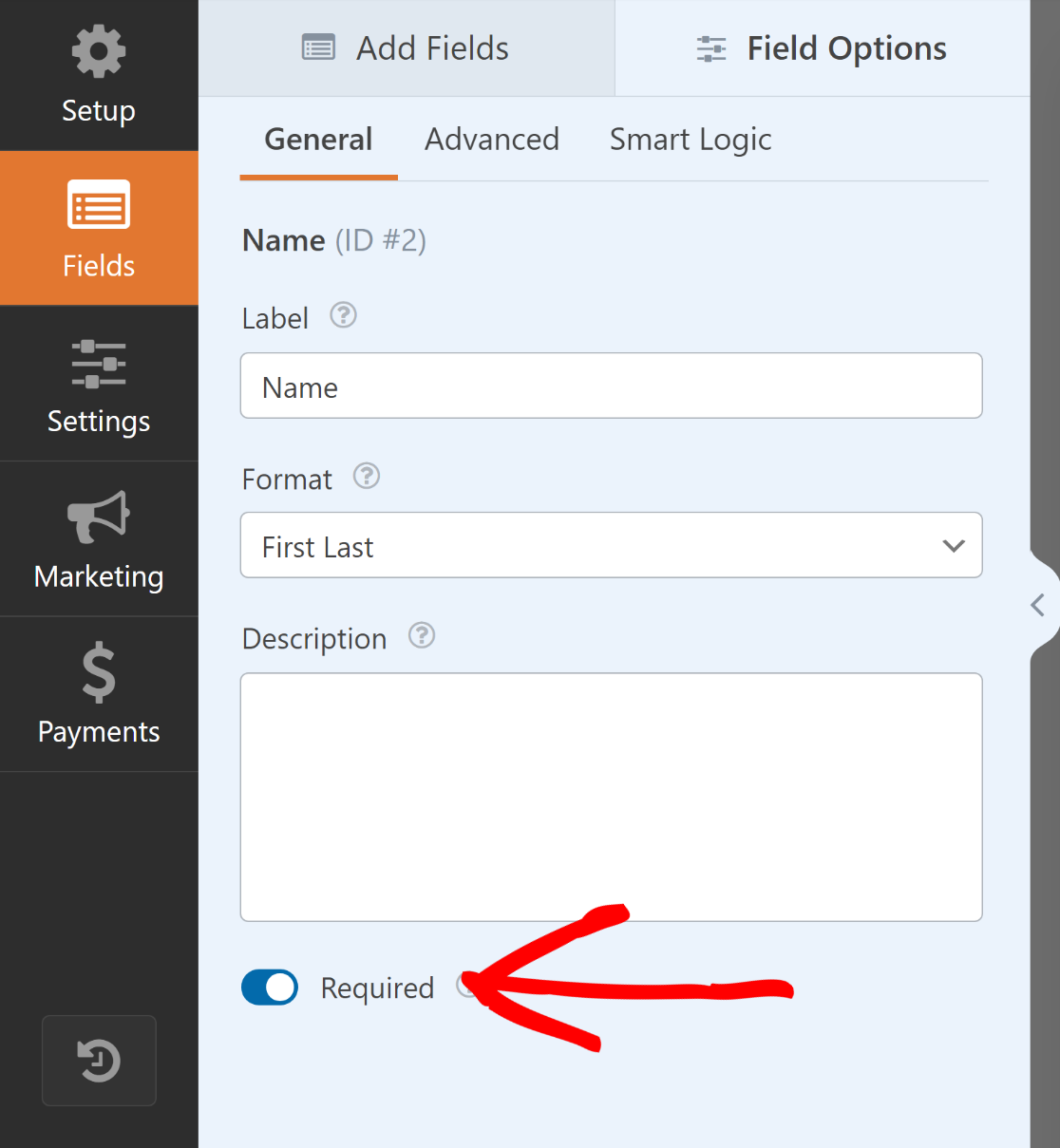
You can drag both in from the fields panel. To make sure you actually capture that information, select each field and toggle on Required under its General options.
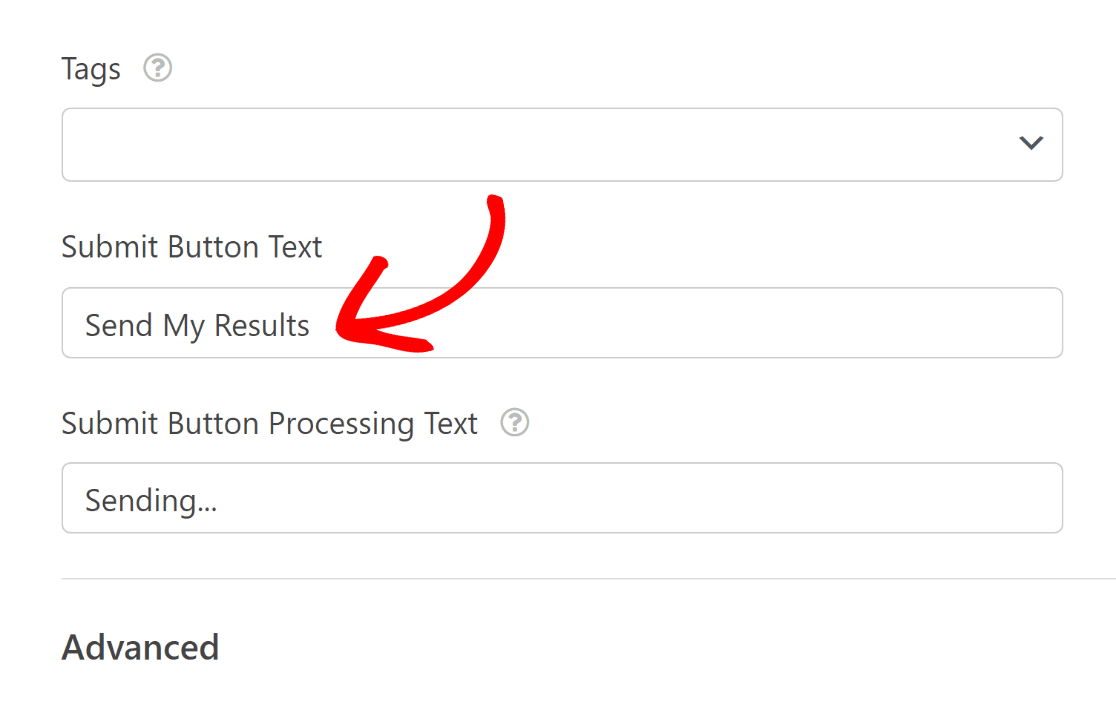
I also like to update the submit button so it suits a calculator. Scroll to the bottom of the preview and click the Submit button.
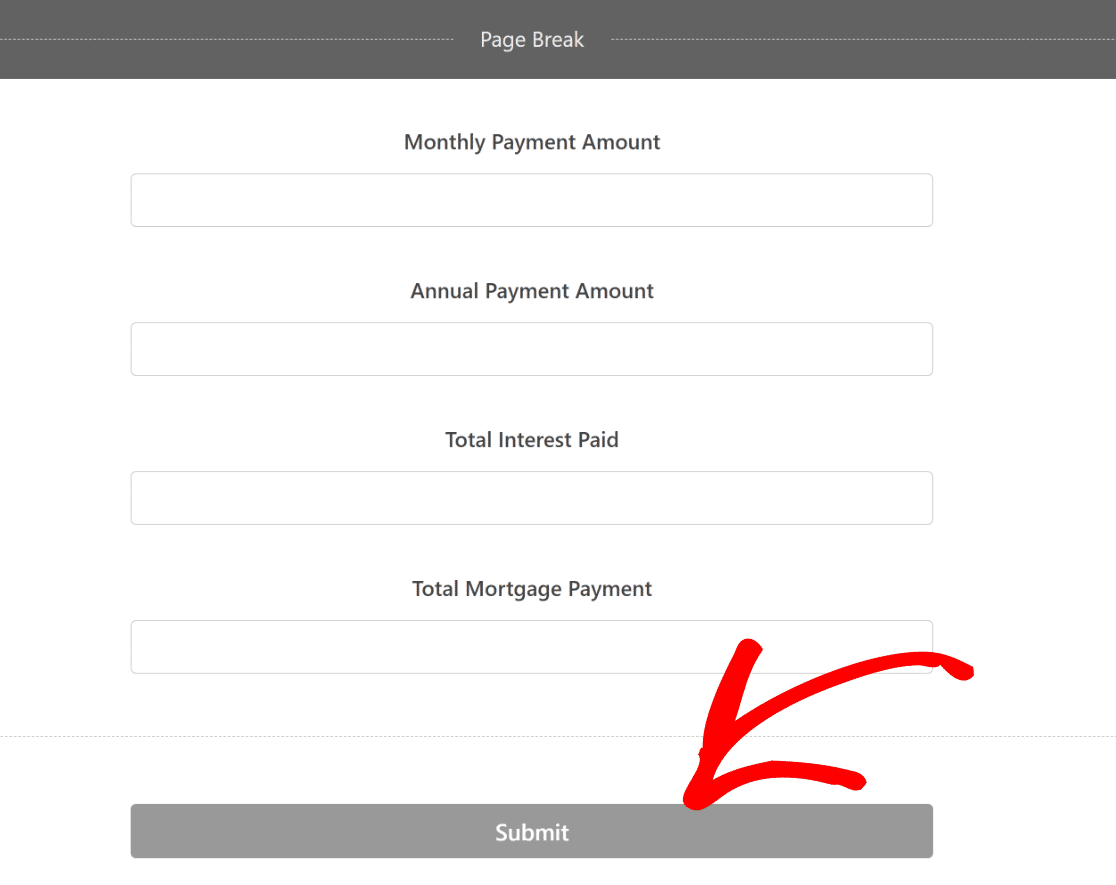
That opens Settings » General, where you can change the Submit Button Text to something clearer like “Calculate My Results.”
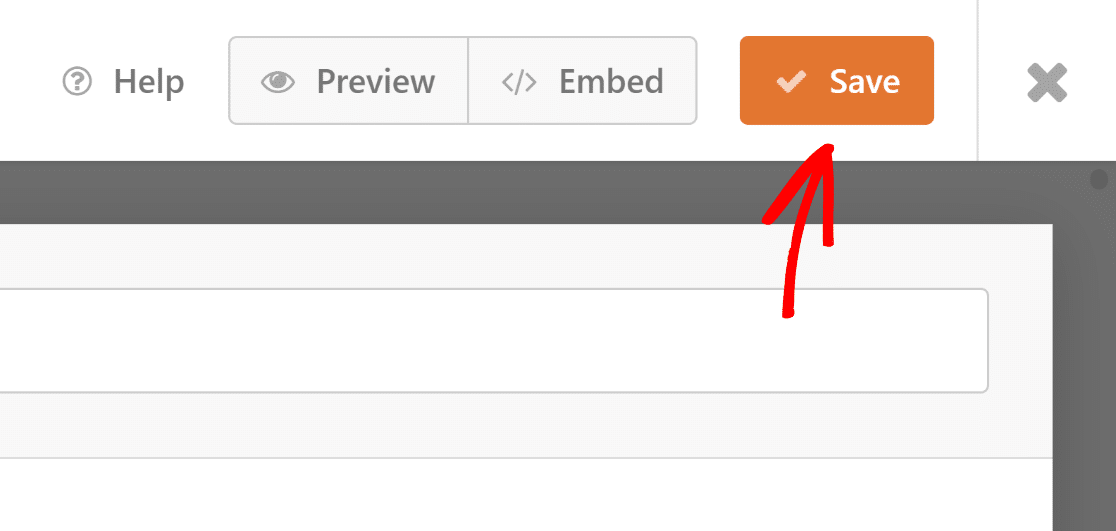
When everything looks right, click Save so you don’t lose your work.
Turn Your Calculator Into a Lead Form (Optional)
If your main goal is collecting leads, you can convert the whole thing into a lead form that shows one question at a time and feels more like a conversation. It’s an optional step, but it tends to lift completion rates on longer calculators.
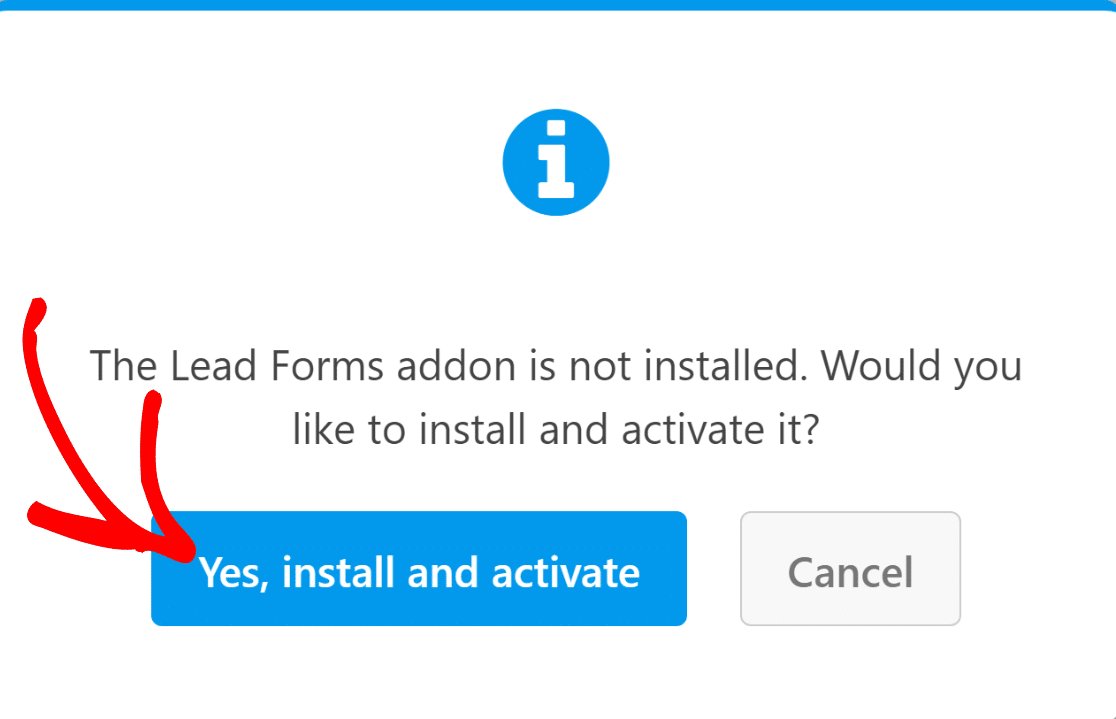
From the form builder, go to Settings » Lead Forms. You’ll be asked to install the Lead Forms addon, so click Yes, install and activate.
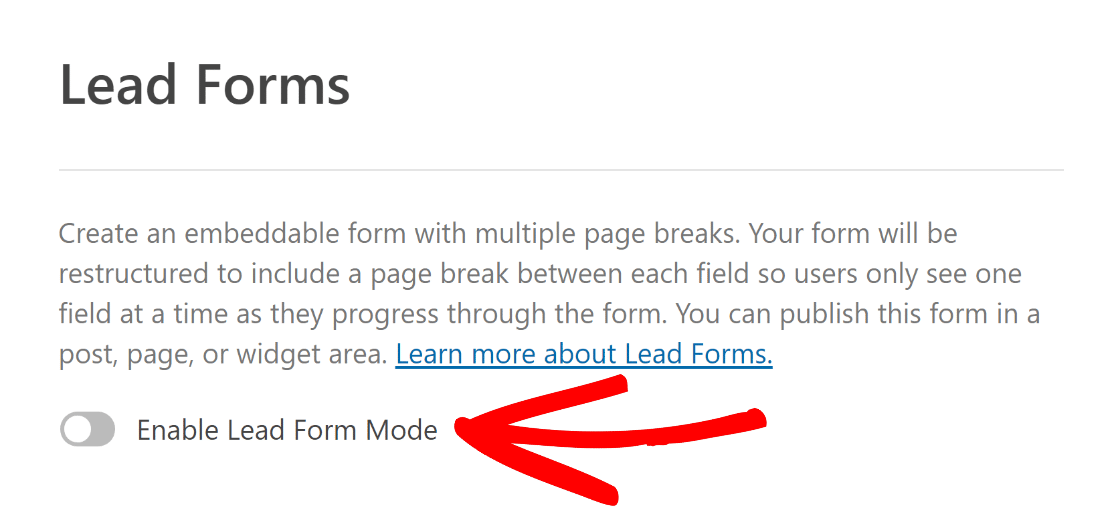
Once it’s active, toggle on Enable Lead Form Mode.
WPForms will let you know it’s about to restructure your form into the lead form layout. Click Enable Lead Forms to confirm.
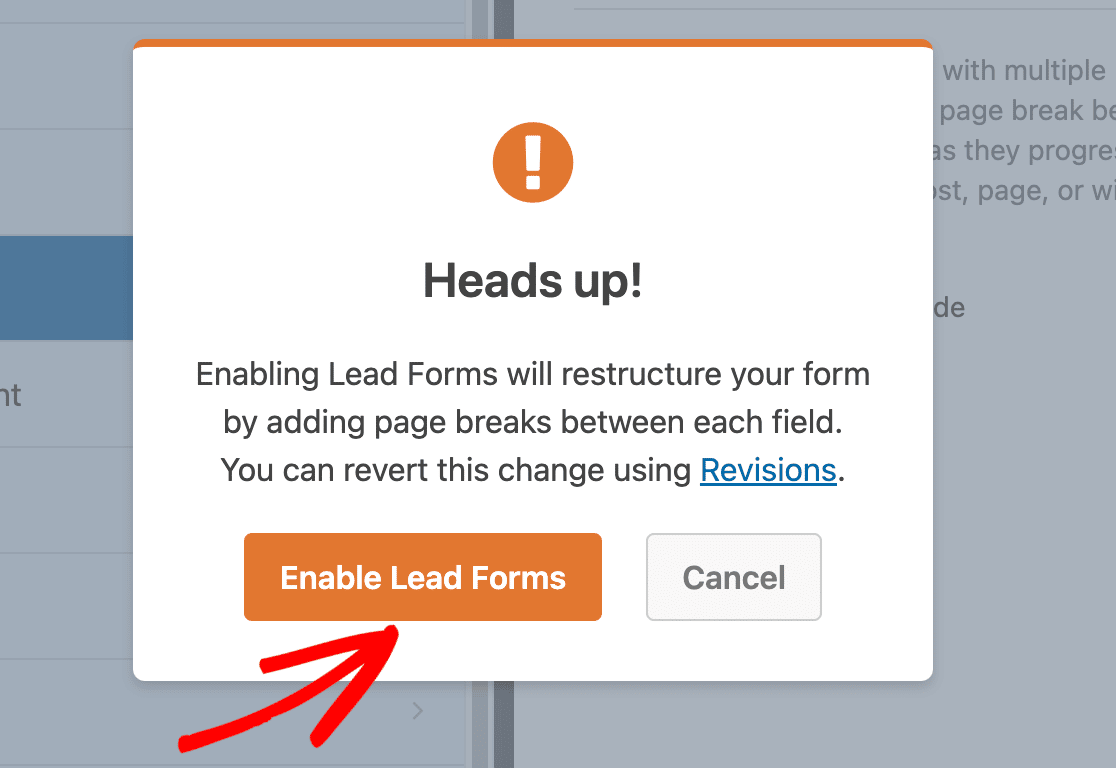
It takes a few seconds to convert your calculated fields into the new format, and then your calculator is ready to publish.
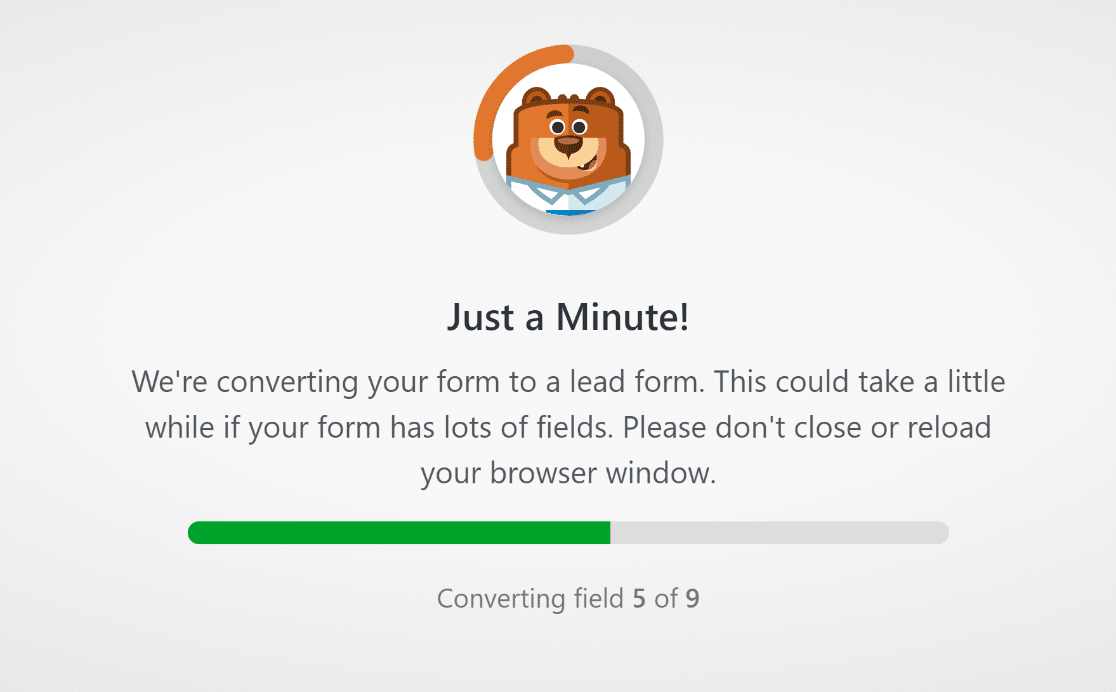
Edit Your Calculator Anytime With Smart Edit
Most calculators need a tweak eventually, maybe a new field or an updated rate in the formula. When that happens, Smart Edit lets you make the change by chatting instead of clicking through settings.
Open any form in the builder and click the Smart Edit button in the bottom-right corner. A chat panel opens, you type the change you want in plain English, and pressing Enter makes it happen.

The handy part for calculators is that Smart Edit can add fields and adjust the math in one request.
Ask it to “add a Sales Tax dropdown and include it in the total,” and with the Calculations addon active it builds the formula and assigns it to the right field for you.
It’s the same AI help you get when building from scratch, ready whenever you want to change a form you’ve already made.
Publish Your Calculator in WordPress
With your calculator built, the last step is putting it on your site. You can add it to any page or post and style it with the block editor so it matches the rest of your design.
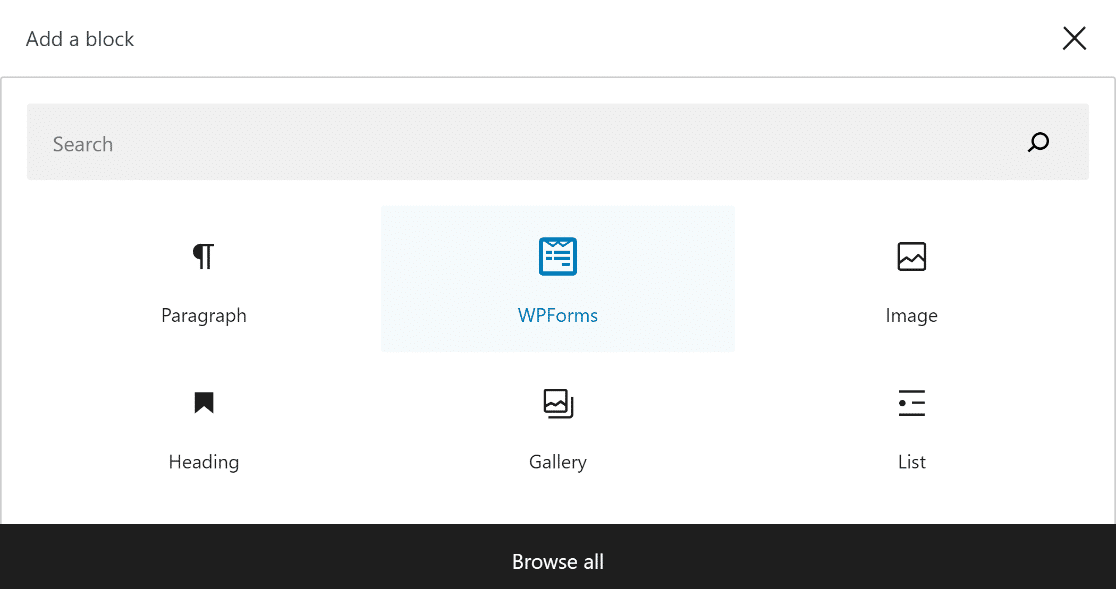
Create a new page or post, or edit an existing one. Click the Add Block button and choose the WPForms block.
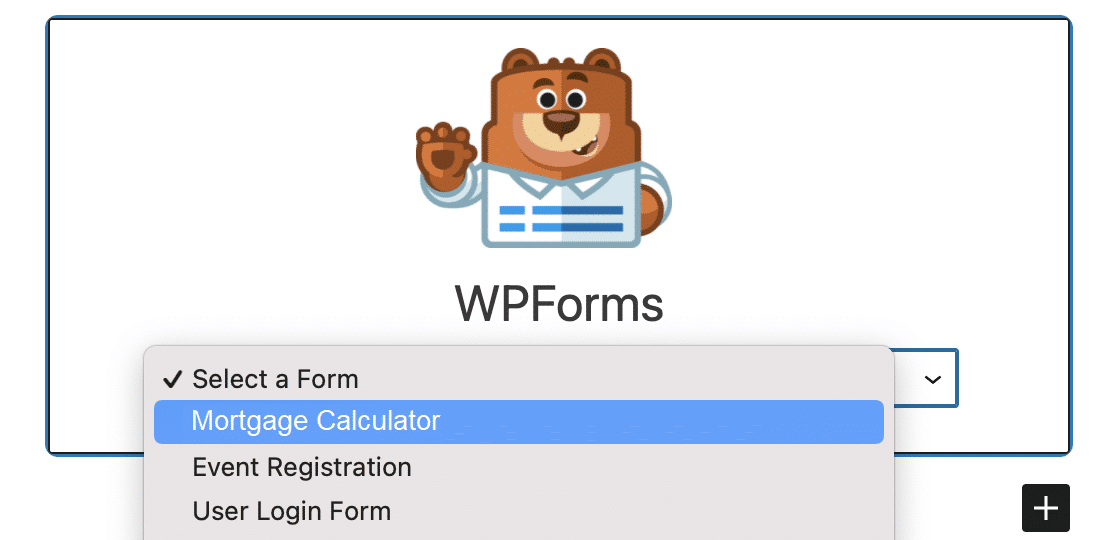
Select your calculator from the dropdown in the WPForms block to drop it onto the page.
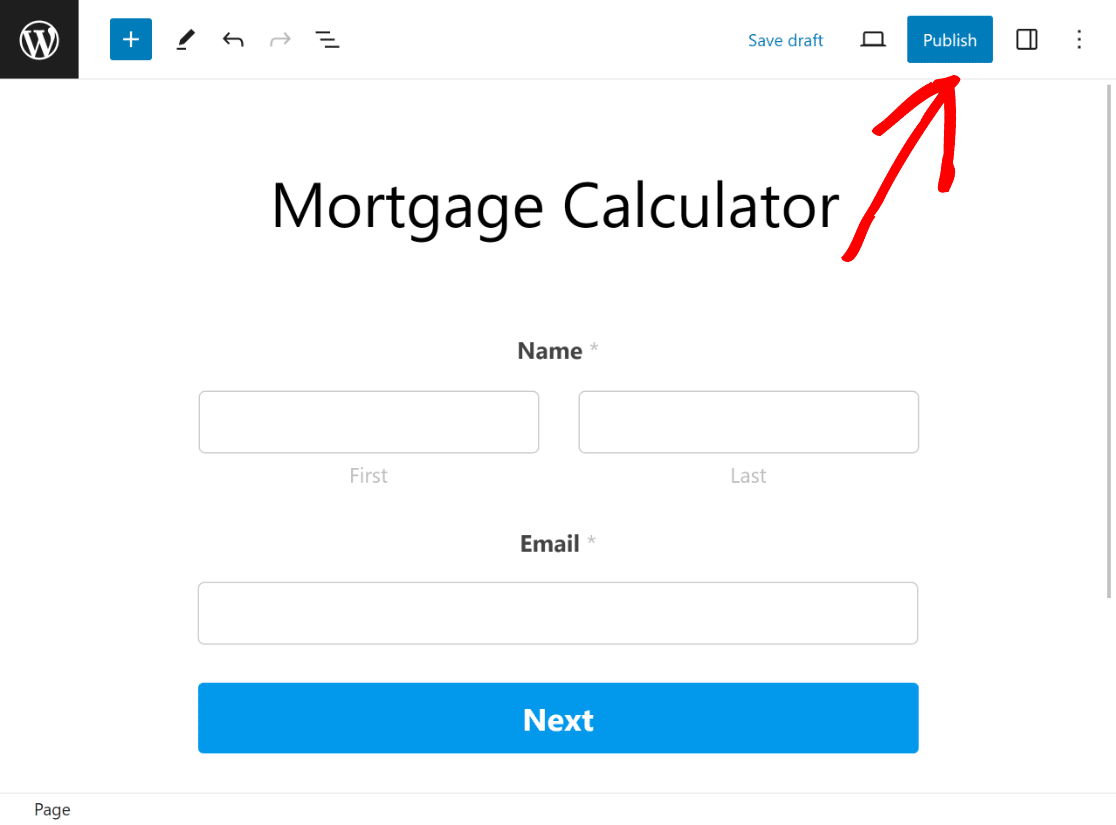
When you’re happy with how it looks, click Publish or Update to make it live.
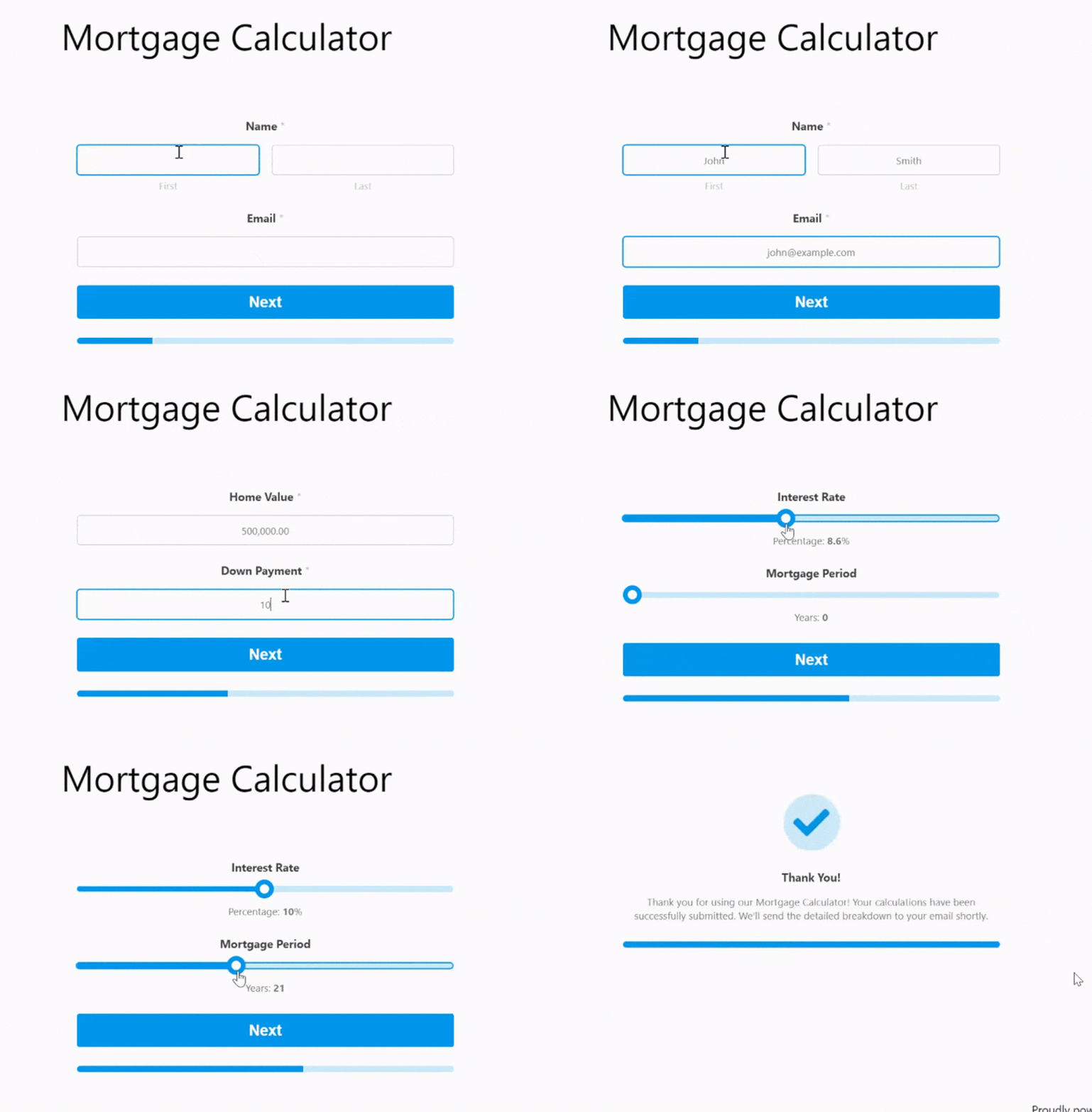
Before you walk away, test the form on the front end to confirm the calculation works the way you expect.
FAQs on Making a WordPress Calculator
Our readers ask plenty of questions about building calculators in WordPress. Here are answers to the most common ones.
Why add a calculator to your WordPress site?
A calculator lets visitors work something out without leaving your page, which keeps them engaged and gives them a reason to trust you. A few examples of where they work well:
- An automotive site can add a car payment calculator so buyers can estimate monthly payments before they visit.
- A health or fitness site can offer a BMI calculator to help visitors check where they stand.
- An online store can give shoppers a shipping cost calculator for an upfront delivery estimate.
Can WPForms build a calculator with AI?
Yes. If you describe the calculator you want in the AI builder, WPForms adds the fields, turns on the Calculations setting, and writes the formula for you.
You can also use Smart Edit to adjust the fields or the math later by typing what you want to change. These calculation features run on the Calculations addon, so you’ll need WPForms Pro to use them.
How hard is it to make your own calculator?
Not hard at all. With WPForms you can build a custom calculator without any code, either by starting from a template or by describing it to the AI.
The drag-and-drop builder and the real-time formula handle the technical side, so you can focus on what you actually want to calculate.
How do I create a mortgage calculator in WordPress?
It’s one of the easiest calculators to set up. After installing WPForms Pro and the Calculations addon, start from the mortgage template or describe it to the AI, then adjust the loan amount, interest rate, and term fields to match what you need.
If you want to compare your options first, here are the best mortgage calculator plugins for WordPress.
Can I make a free calculator in WordPress?
You’ll find free calculator plugins, but they’re often limited in what they can work out or how the form looks.
WPForms gives you far more flexibility through the Calculations addon, which handles everything from a simple total to a multi-step pricing estimator.
To weigh up your choices, take a look at the best calculator plugins for WordPress.
Next, Fine-Tune What Your Calculator Adds Up
If you sell products, you can set it up so the price changes based on what your visitor selects, like add-ons, quantities, or delivery options. Here’s how to change the total price based on product options with WPForms.
Build Your Calculator Form Now
Ready to build your form? Get started today with the easiest WordPress form builder plugin. WPForms Pro includes lots of free templates and offers a 14-day money-back guarantee.
If this article helped you out, please follow us on Facebook and X (Twitter) for more free WordPress tutorials and guides.





How can one create a custom calculator?
For example Stamp Duty Calculator. I can put together code for Excel, but how would I do that in WP forms.
Also would be possible to say create a form that outputted say 56 days from a certain date?
Just can’t see a way to do true custom calculators.
Hey Ian – We’d be happy to take a look at your question! When you get a chance, please drop us a line in support so we can assist.
If you have a WPForms license, you have access to our email support, so please submit a support ticket.
Otherwise, we provide limited complimentary support in the WPForms Lite WordPress.org support forum.
Thanks 🙂
Hi Ian! Here’s a calculator form that can display the days between two dates: https://wpforms.com/templates/days-between-dates-calculator-form-template/
We don’t have a stamp duty calculator template yet, but I’ve shared your suggestion with the team!